 Maintora
From the equipment label to its inspection.
Give each asset a QR identity that connects the physical label to its equipment record and inspection workflow.
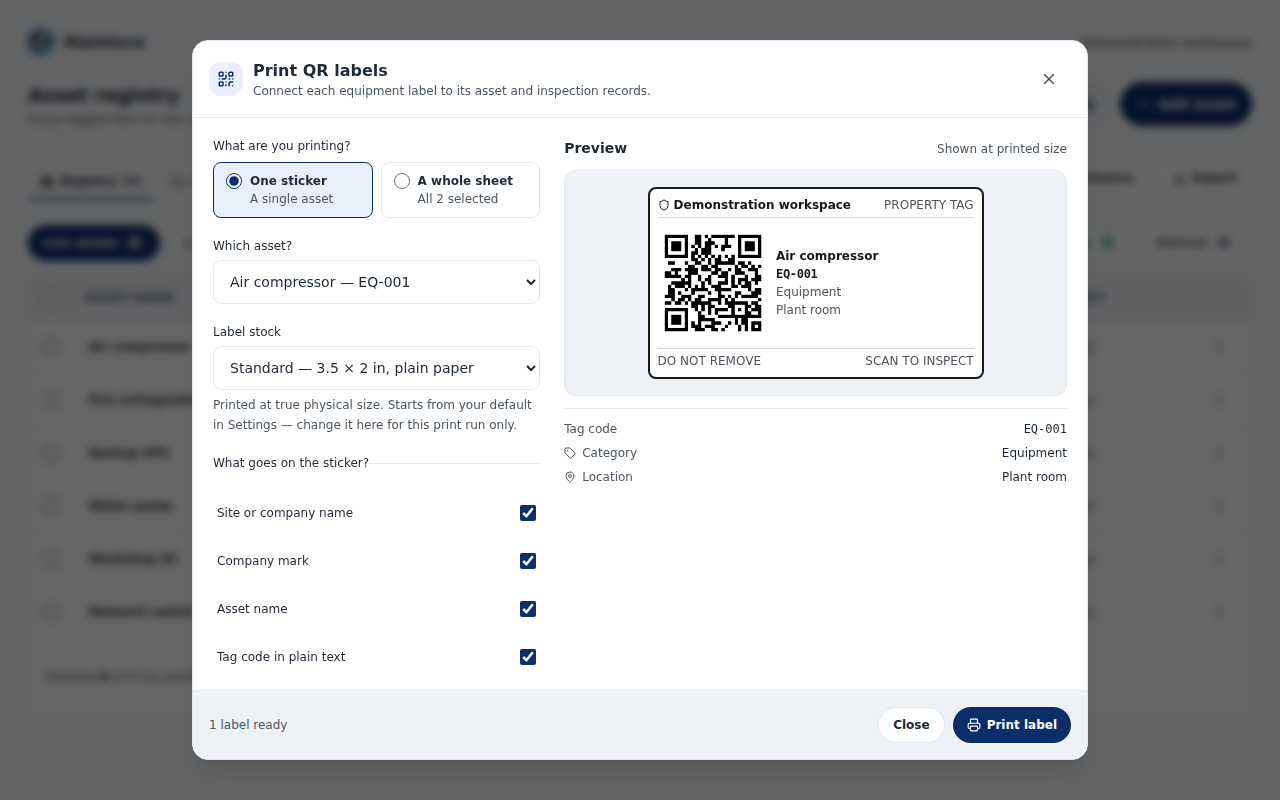
A label your team can recognise
Print a QR code with equipment details and a readable asset code. Choose the label stock and details that suit the equipment and available label space.
Open the workflow on a phone
Use a phone camera to open the label URL or use the in-app scanner. Sign-in and workspace permissions still apply: a label is not a public link to private asset data.
Handle a damaged label deliberately
A readable tag code helps identify equipment when the QR image is damaged. Completion rules depend on the policy, and the recorded entry method keeps typed codes distinct from scans and links.
From setup to everyday work
- Create an asset and give it a readable tag code.
- Print and attach its QR label.
- Scan the label and complete the permitted inspection workflow.
Common questions
Does a QR label reveal private asset information?
The label identifies the asset workflow; it does not bypass account or workspace permissions.
Do staff need a separate mobile app?
Maintora works in the phone browser. Camera access requires the appropriate browser permission and a secure connection.
See Maintora with your workflow in mind.
Talk through your asset list, inspection routines and team responsibilities.
Request a demo Contact the team